学习官方MSDN的文档https://docs.microsoft.com/en-us/dotnet/framework/wpf/advanced/threading-model
wpf程序默认有2个线程: Render线程和UI线程. Render线程运行在后台, 负责wpf的绘制. UI线程负责接收用户输入, 处理事件监听, 重绘屏幕(Repaint事件), 还有运行wpf程序的逻辑代码. 大多数wpf程序只需要一个UI线程即可, 少数应用场景需要多个UI线程.
UI线程将需要处理的任务以”work item”的方式放到队列中, 然后根据work item的优先级从队列中取出执行, 执行完毕后再取出下一个work item, 循环往复. 这部分功能是封装在一个叫 Dispatcher的对象中. 每个UI线程至少有一个Dispatcher, 每个Dispatcher只在一个线程中执行work item. 什么样的work item呢? 可以见下图左边部分
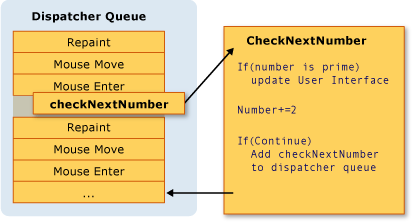
可以看到, 用户逻辑代码和系统消息处理都是在dispatcher queue当中. 为了保持UI的及时响应. 用户逻辑代码和系统消息处理都不应该是耗时的操作. 否则UI就会失去响应. 对于那些耗时的操作, 例如复杂计算(long runing)或者远程数据查询(blocking), 可以启动work Thread执行. 当耗时操作完成时, 再通知UI线程去更新显示.
而对于UI元素, Windows系统只允许构建该UI元素的线程才能访问, 其他线程不能访问(thread affinity) . 这样做是为了确保UI元素的完整性, 可以想象一个listbox, 绘制的同时, 它的内容也在被其他线程更改, 这样就会显得很奇怪.
那work Thread怎么将执行的结果告知给UI线程呢? 它是将”更新”的操作封装成一个work item, 放到dispatcher的队列中. dispatcher提供了2种放的方式: Invoke 和 BeginInvoke. 前者是同步的, 放了之后要执行完才能返回. 后者是异步的, 放了之后, 立马返回.
那么如何得知该对象是否只能由UI线程访问呢? 看它的基类. wpf中大部分类都继承自DispatcherObject. 例如 Brush和Geometry都是继承DispatcherObject, 其他线程不能访问. 而*Color类不是, 其他线程可以访问. DispatcherObject对象会保存创建它的线程的Dispatcher引用, 并且在每一个DispatcherObject的方法调用之前, 会通过VerifyAccess方法验证当前线程的Dispatcher对象与它保存的Dispatcher引用是否一致. 如果不一致,则抛出异常.
以上就是wpf线程模型的概要. 下面是几个样例(位于wpf-sample的Threading目录中)
- 远程查询
- 利用UI程序的idle时间执行耗时操作
- 多个UI线程
1. 远程查询
这个例子是使用dispatcher最常见的那种情况: 后台线程通过dispatcher.BeginInvoke将更新操作委托给UI线程
UsingDispatcher样例1
2
3
4
5
6
7
8
9
10
11
12
13
14
15
16
17
18
19
20
21
22
23
24
    // Start fetching the weather forecast asynchronously.
    var fetcher = new NoArgDelegate(
        FetchWeatherFromServer);

    fetcher.BeginInvoke(null, null);//异步委托,实际是起一个线程

private void FetchWeatherFromServer()//该方法是在非UI线程中执行
{
    // Simulate the delay from network access.
    Thread.Sleep(4000);

    // Tried and true method for weather forecasting - random numbers.
    var rand = new Random();
    string weather;

    weather = rand.Next(2) == 0 ? "rainy" : "sunny";

    // Schedule the update function in the UI thread. 注意这里用到Schedule
    tomorrowsWeather.Dispatcher.BeginInvoke(//wpf元素的Dispatcher可以在非UI线程中获取,但不能访问其他东西
        DispatcherPriority.Normal,
        new OneArgDelegate(UpdateUserInterface),
        weather);
}
2. 利用UI程序的idle时间执行耗时操作
这个例子演示了即使是单个UI线程, 也可以在保持UI响应的同时, 做一些耗时的操作. 关键是利用好UI线程idle的时间. 就是前面用到的图:
SingleThreadedApplication样例
1 | public void CheckNextNumber() |
3. 多个UI线程
MultiThreadingWebBrowser
1 | private void NewWindowHandler(object sender, RoutedEventArgs e) |
Each thread that hosts UI objects needs a dispatcher in order for those UI objects to function. In a single-threaded application, you don’t need to do anything special to create a dispatcher. The Application class creates one for you at startup, and shuts it down automatically on exit.
However, if you create multiple user interface threads, you will need to start up and shut down the dispatcher for those manually
The Dispatcher for a thread is created automatically the first time an object derived from the DispatcherObject base class is created. All WPF classes derive from this base class. So, the Dispatcher for the new thread will come into existence when the Window is created. All we have to do is call the static Dispatcher.Run method to ensure that messages are delivered to any UI objects created on the thread.
大多数情况下,我们是不需要多UI线程的,所谓多UI线程,就是指有两个或者两个以上的线程创建了UI对象。这种做法的好处是两个UI线程会分别进入各自的GetMessage循环,如果是需要多个监视实时数据的UI,或者说使用了DirectShow一些事件密集的程序,可以考虑新创建一个UI线程(GetMessage循环)来减轻单一消息泵的压力。当然,这样做的坏处也很多,不同UI线程中的UI对象互相访问是需要进行Invoke通信的,为了解决这个问题,WPF提供了VisualTarget来用于跨线程将一个对象树连接到另一个对象树,如:
1 | public class VisualHost : FrameworkElement |
在另一个UI线程下的VisualTarget1
2
3
4
5
6
7
8
9
10
11
12
13
14
15
16
17
18
19
20
21
22
23
24
25
26
27
28
29
30
31
32
33
34Window win = new Window();
win.Loaded += (s, ex) =>
{
VisualHost vh = new VisualHost();
HostVisual hostVisual = new HostVisual();
vh.Child = hostVisual;
win.Content = vh;
Thread thread = new Thread(new ThreadStart(() =>
{
VisualTarget visualTarget = new VisualTarget(hostVisual);
DrawingVisual dv = new DrawingVisual();
using (var dc = dv.RenderOpen())
{
dc.DrawText(new FormattedText("UI from another UI thread",
System.Globalization.CultureInfo.GetCultureInfo("en-us"),
FlowDirection.LeftToRight,
new Typeface("Verdana"),
32,
Brushes.Black), new Point(10, 0));
}
visualTarget.RootVisual = dv;
Dispatcher.Run(); //启动Dispatcher
}));
thread.SetApartmentState(ApartmentState.STA);
thread.IsBackground = true;
thread.Start();
};
win.Show();